
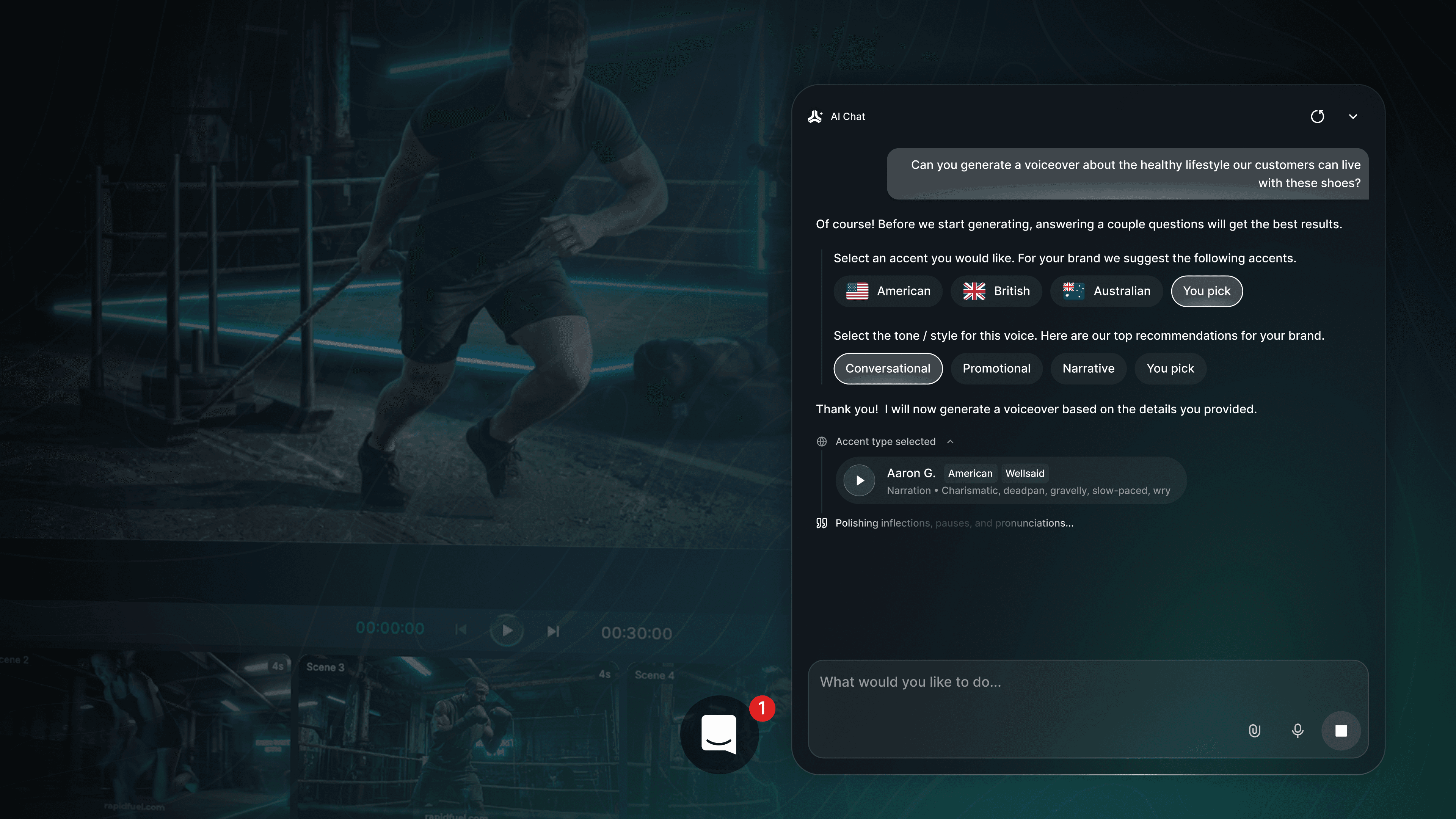
QuickFrame AI has made it easy for any marketer to quickly generate a first cut of a video. But the first cut is never the final cut. That comes through in the edit, which, traditionally, has meant scrubbing through a timeline, manually swapping scenes, making surgical cuts, and digging through menus just to change a line of voiceover.
With QuickFrame AI’s Editing Assistant, editing is as easy as having a conversation. Instead of making manual tweaks, you can simply tell the assistant what you want to change through plain-language prompts, and it’ll do the heavy lifting for you.
How to Prompt the AI Editing Assistant
Once your first generation is ready, the AI Editing assistant prompt bar will automatically appear next to the video. The key to getting great results from there is specificity. Vague instructions like "make this better" or "make this more engaging" doesn't give the assistant enough to work with. The best way to give it direction is to structure your requests using this simple formula:
[Action] + [What to change] + [Timing or placement]
Examples:
"Trim this to 15 seconds and improve pacing in the first half"
"Rewrite the voiceover to focus on [key benefit]"
"Add an end card with my brand's logo and website URL at the end of the video"
The more you describe what should change, where it should happen, and the outcome you want, the better the assistant performs.
What You Can Do with the AI Editing Assistant
The assistant covers a wide range of edits, from tightening your cut to swapping out characters, refreshing your voiceover, or reformatting for a different platform. Here's a look at what's possible.
Branding
Increase your brand’s visibility throughout the video, from logo and URL to CTA.
"Add logo and URL throughout the video"
"Include an end card with CTA and website URL"
Messaging (Script & Voiceover)
Rewrite or refine what's being said and how it's delivered.
"Rewrite the voiceover to be more conversational"
"Focus messaging on convenience and ease of use"
Structure (Timing & Flow)
Tighten your cut or adjust the pacing where it counts.
"Trim this to 15 seconds"
"Speed up the first 5 seconds"
Character Swaps
Swap out the characters in a scene while keeping everything else intact.
"Replace the characters in scene 2 with the characters in scene 1"
Character Dialogue
Add or update what characters are saying in a scene.
"Adjust so all of the characters in scene 5 are saying 'Cheers!'"
Object or Audio Replacements
Upload an image or audio to swap directly into your video.
"Update the product in scene 2 with the attached image. Keep all action otherwise the same"
"Use the attached song as the background track. Cut it down so it matches the video duration."
Aspect Ratio Adjustments
Reformat your video for a different channel or placement.
"Reformat this video for 9x16"
"Reformat this video for Instagram Reels"
Your Final Cut, Faster
Whether you need to tighten the pacing, refresh the voiceover, or swap out a scene entirely, you don't have to figure it out alone. The AI Editing Assistant is there to bridge the gap between your first draft and your final cut. You got it off the ground — now let the assistant bring it home. Start creating with QuickFrame AI today.