
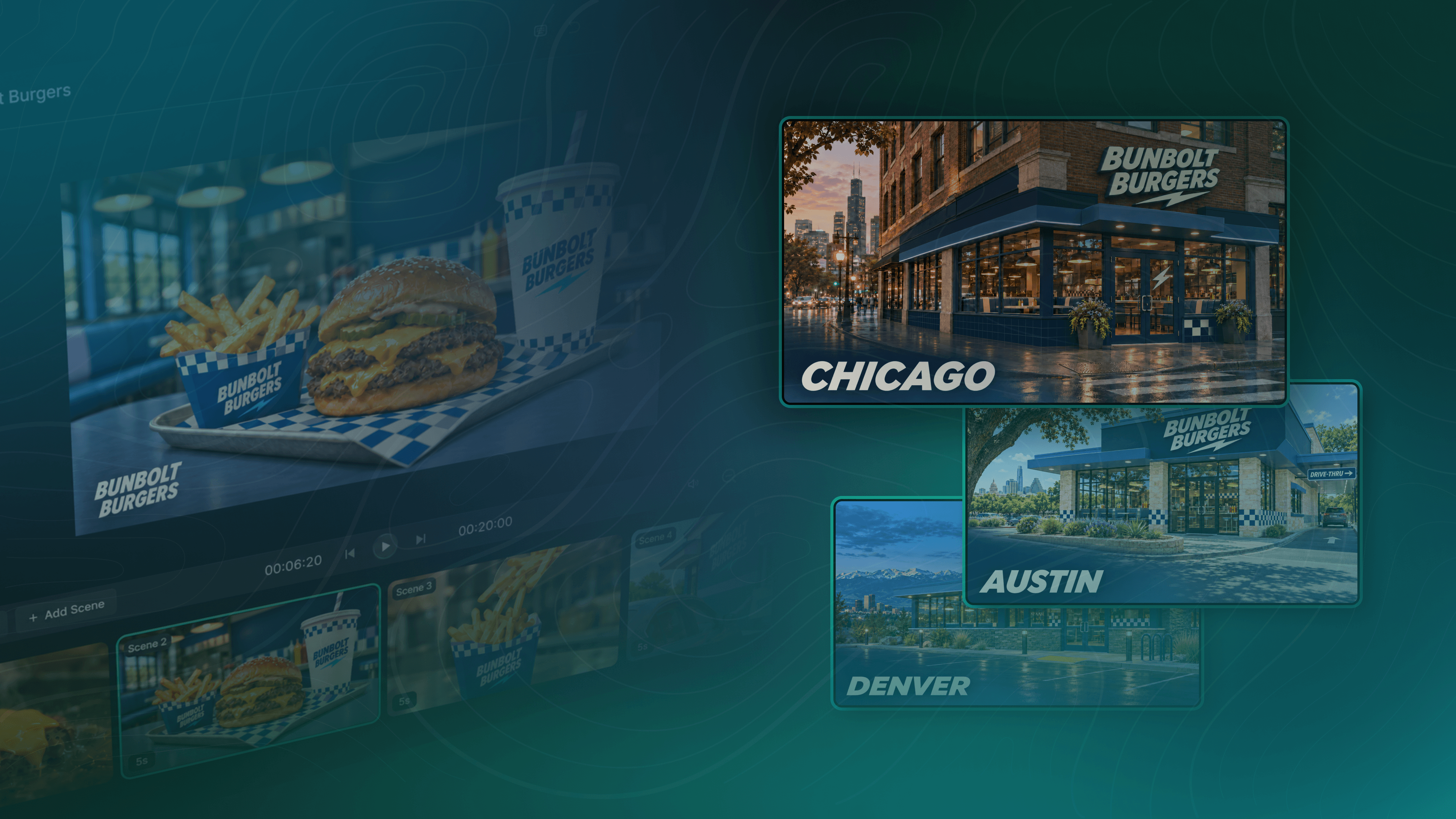
If you do business in more than one place, you’ve probably noticed that a single video ad can’t quite cover everywhere you are. The brand looks the same in every city, but not every city is the same. (Obviously.) If you’ve got a location in, let's say, Tulsa, you want every Tulsan to come away from your ad knowing you’re just around the corner, maybe having heard it in the language they speak at home. Same goes for the next town over, and the town after that. One spot for your whole chain doesn’t leave much room for any of that personalization.
Making a separate ad for every market is one way to fix it, right up until you check your budget against how many locations you have and think, “Well, maybe not.” You could run the same ad everywhere and save money, sure, but then you’ve given up that local flavor. Tulsans want to feel like you’re actually in Tulsa, after all.
Or you can try a third way. Build a single base video in QuickFrame AI, duplicate it for each location’s campaign, and have the AI Editing Assistant swap out a few seconds of your opening hook or closing end card to fit whichever market you're after. The brand stays put; the local details are what change.
Quick Takeaways
Localize one base video by changing the market-specific details that matter while keeping the core brand message consistent.
-
Start with one base video and duplicate the project for each location campaign.
-
Keep the core brand message consistent while changing the opening hook or closing end card for the local market.
-
Use market-specific details such as city names, neighborhood callouts, offers, service territories, or rebates where they apply.
-
Swap in a photo of the actual location, generate a replacement clip, and update the matching voiceover or on-screen text.
-
When a market needs another language, translate the voiceover and on-screen text together.
Start With a Base Video You Can Version
Before anything gets localized, you need the one video everything else comes from. This is your core brand ad, the cut you’d be comfortable running in any market as is. If you’re making it fresh, decide up front which parts will change by market. Our suggestion is to keep those edits to the opening hook or closing end card, and leave the middle, where the brand message lives, the same.
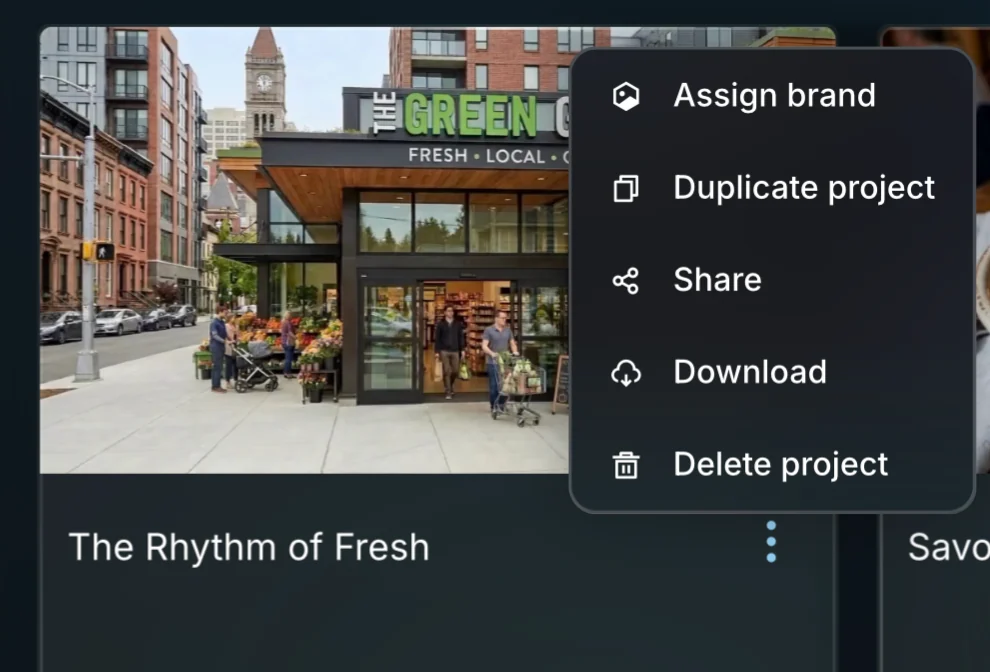
Already have the base video? Upload it to QuickFrame AI, or if you built it in the platform to begin with, click the three dots on the project card and select Duplicate project. Each copy becomes the main ad for one location’s campaign. The original stays untouched, so you can keep duplicating from it as you promote more locations, or as you open new ones.
Change the End Card for Each Market
Open a copy and tell the AI Editing Assistant what you want changed on the end card. The simplest localization is a market-specific graphic. If you’ve just opened in a new area, ask it to add “Now open in [City Name]” to the existing end card, like in the example below.
To go a step further, add a voiceover line over the end card. Have it say you’re now open in the neighborhood (like in the below example) or call out something only this market gets. The base video plays through as it did, with the last few seconds reserved to speak directly to the market. Utilities get the same use out of this; their markets are service territories rather than storefronts, so the end card carries the rebate that applies in one county and not the next.
Swap In a Photo of the Actual Location
An actual photo of your business makes each version feel local faster than any line of text ever could. Upload a picture to the AI Editing Assistant and tell it to bring that to life, then use the new clip in place of a section of the existing video. A timeline view will open where you can mark the exact section to replace.
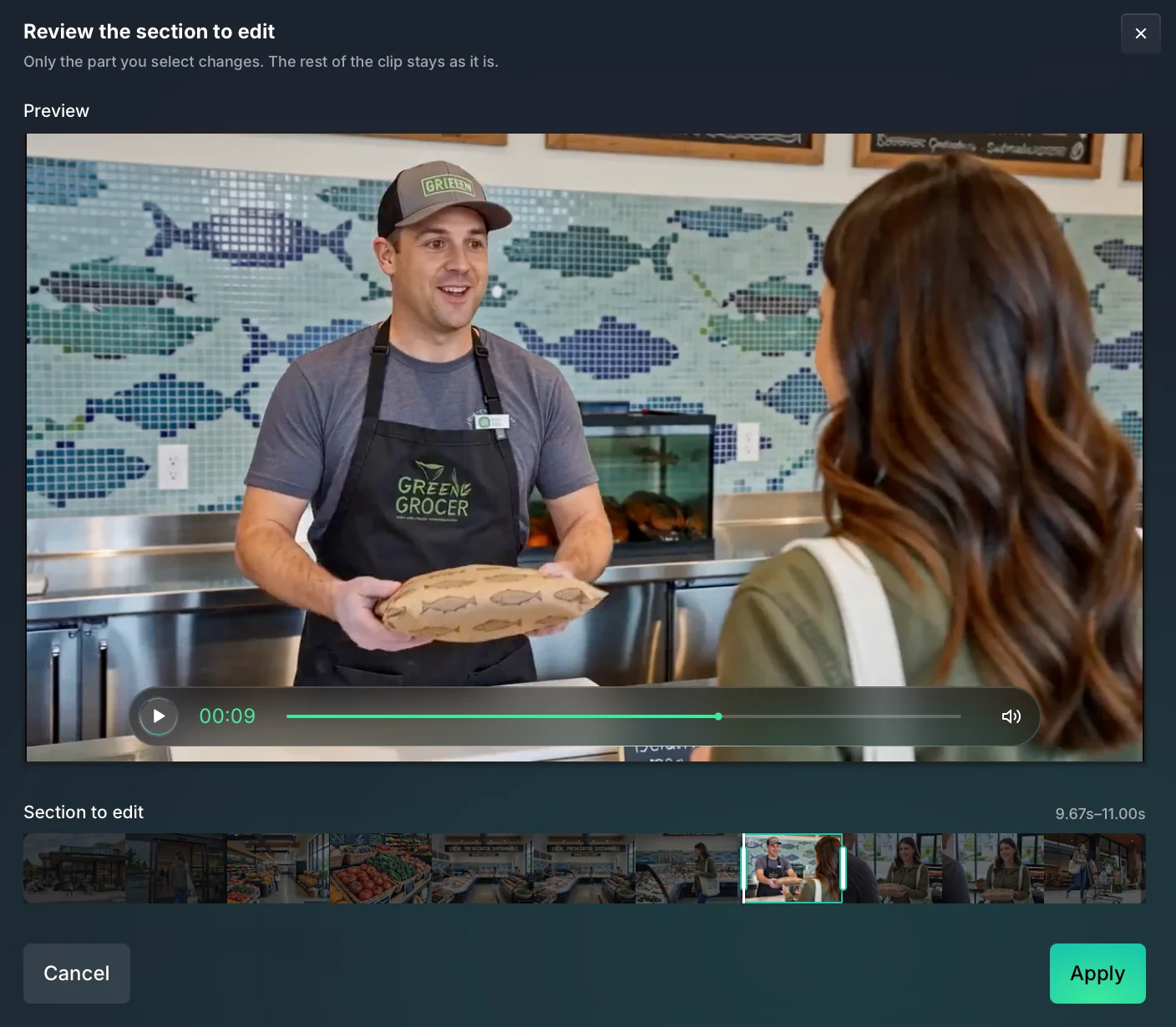 The AI Editing Assistant generates a clip from your photo and drops it into that spot. Everything on either side stays as it was, like in the examples below, which just swapped the opening shot for a different city’s storefront.
Once the clip is in, update the voiceover and any on-screen text to match, so the new footage and the words around it describe the same place.
Translate the Version for a New Language
Some markets need a different language, and QuickFrame AI supports voiceover in multiple languages. Tell the AI Editing Assistant you’d like the video translated and it updates the voiceover and the on-screen text together. The Spanish-language restaurant spot below comes off the same base as the English one we shared above.
One Base, As Many Markets As You Need
Whether you’re promoting a handful of locations or a few dozen, the process is the same. Build one base video, duplicate it for each campaign, and let the AI Editing Assistant change the parts that should be specific to each market. Every version comes off the same cut, so the brand never drifts, and every version carries its own city, offer, or language, so the ad never feels like it was made for somewhere else.
Log in to QuickFrame AI and start sprinkling some local flavor into your campaigns.